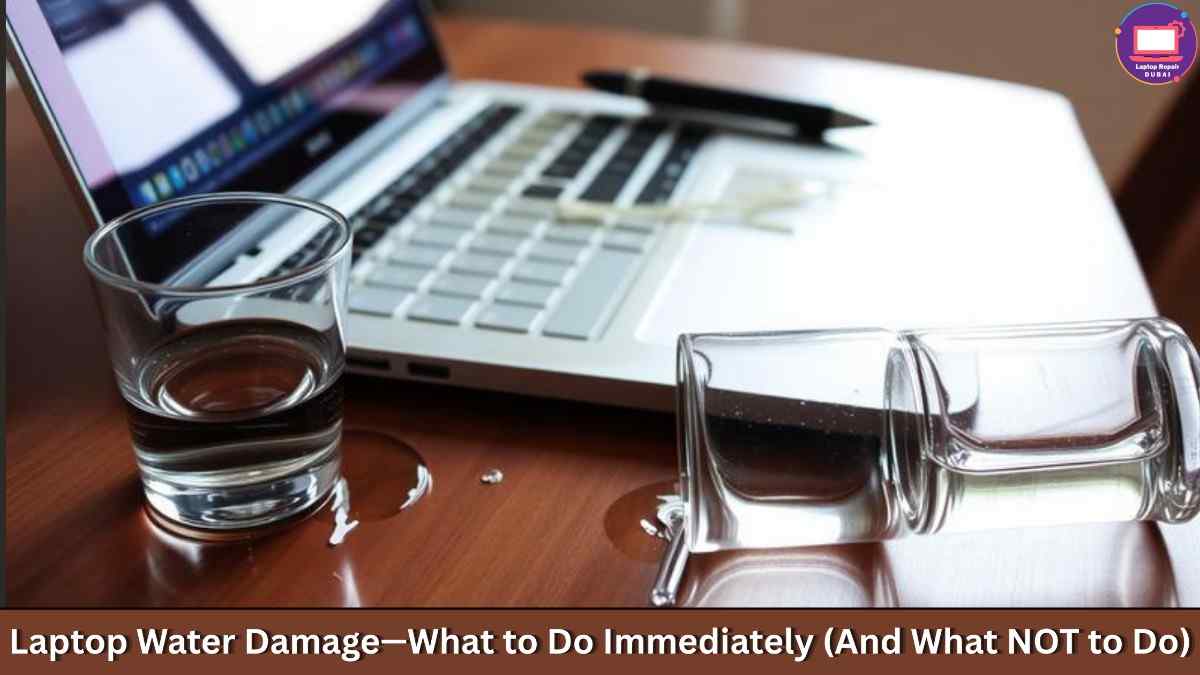
Water spilled on your laptop?
First—breathe… (Obviously not possible)…
Second—do NOT press the power button again.
Yes, we know your instinct. You want to check if it still works. You want to “just test it once.”
Just DO NOT… That one curious power button click can turn a small spill into a motherboard funeral.
💥 The truth is, when liquid touches internal components, damage doesn’t always happen instantly. The real danger begins when electricity flows through wet circuits. That’s when short circuits and permanent board damage start their work
But the good news is that if you act fast and correctly, you can save your laptop.
In this guide, you’ll learn the exact first 5 minutes’ steps you must take, what to avoid (including common “rice hacks”), how water actually damages internal components, when drying is enough, and when you need professional laptop repair Dubai experts
This isn’t theory. This is immediate action advice. So don’t skim this casually. Read it now—and follow each step carefully.
Let’s save your laptop the right way…
🟢 What To Do Immediately (Within the First 5 Minutes)
— Turn It Off Immediately
The moment water spills on your laptop, shut it down. Don’t think. Don’t test. Don’t check if the screen still works.
Electricity flowing through wet circuits causes short circuits instantly. Press and hold the power button until it turns off completely.
Acting within the first 30–60 seconds dramatically increases recovery chances.
Immediate action:
- Power off completely
- Do not click anything else
- Do not attempt to save files
- Stop all electrical activity instantly
Your priority is stopping the current flow.
— Disconnect the Charger and All Accessories
Unplug the charger immediately. Remove USB drives, the mouse, the external keyboard, headphones—everything.
Water + electricity equals internal component damage. The charger continues pushing power even if the laptop is off.
Disconnecting every power source reduces the risk of motherboard burn or chip damage.
Remove quickly:
- Charging cable
- USB devices
- External drives
- SD cards
- Docking stations
Cut every connection fast.
— Remove the Battery (If Possible)
If your laptop allows battery removal, take it out immediately. Many modern laptops have internal batteries, but if yours has a removable one, don’t hesitate.
The battery still sends residual power to circuits. Removing it gives your laptop a better survival chance after liquid damage.
Important note:
- Only remove if accessible easily
- Don’t force open sealed laptops
- Skip this step if unsure
Safety first. Speed second.
— Flip the Laptop Upside Down
Open the laptop slightly and place it in an inverted V-shape (like a tent). Let gravity help you. Water trapped inside the keyboard area can drip out naturally.
Don’t shake aggressively. Just position it carefully so the liquid drains instead of spreading deeper inside.
Correct position:
- Keyboard facing down
- Screen slightly open
- Stable surface
- Absorbent cloth underneath
Gravity works better than panic.
— Dry the Exterior Gently
Use a clean microfiber cloth to wipe visible liquid from the keyboard and body. Dab gently.
Don’t rub hard. Rubbing can push moisture further into gaps. Focus on removing surface water only. Internal drying requires professional inspection later.
Use only:
- Soft cloth
- Tissue (light pressure)
- No heat tools
At this stage, less interference helps more.
🔴 What NOT To Do (These Mistakes Make It Worse)
— Don’t Turn It On “Just to Check”
This is the most common mistake. You wait five minutes, curiosity wins, and you press the power. That single click can fry the motherboard permanently.
Avoid this completely:
- No test boot
- No charging
- No “quick check”
Patience saves components.
— Don’t Use a Hair Dryer
Heat from a hair dryer pushes moisture deeper into internal circuits. It also creates static electricity, which can damage sensitive chips.
Hot air does not fix laptop water damage. It often spreads it.
This isn’t about drying hair. It’s about protecting microelectronics.
— Don’t Shake It Like You’re Draining a Bottle
Shaking spreads liquid across internal boards. Water that stayed near the keyboard can move toward the motherboard or GPU area.
Gentle flipping works. Aggressive shaking creates more internal exposure.
Let gravity work. Don’t make things worse.
— Don’t Put It in Rice and Hope for Magic
Yes, we need to say this clearly.
Rice absorbs surface moisture slowly. It does not remove liquid trapped under chips or inside connectors.
Corrosion begins quickly, sometimes within hours. Rice cannot stop oxidation.
This isn’t biryani. Rice won’t repair motherboard corrosion.
What Actually Happens Inside a Wet Laptop
— Short Circuits Happen Fast
When water bridges electrical pathways, current flows incorrectly. That causes short circuits. Chips heat up instantly. Components burn.
Sometimes damage happens within seconds of powering on after exposure.
— Corrosion Starts Quietly
Even if the laptop seems fine after drying, you can still see the corrosion. It could start forming on the motherboard. Because the fact is, minerals in water trigger oxidation.
Over days or weeks, connectors weaken and chips fail unexpectedly.
You may see:
- Keyboard keys stop responding
- Random shutdowns
- Charging issues
- Screen flickering
Delayed laptop water damage is real.
— Internal Components Are Extremely Sensitive
Modern laptops pack dense microchips and thin copper traces. Even a small drop can disrupt signal flow.
Unlike older electronics, today’s laptops tolerate almost zero moisture inside.
That’s why professional cleaning matters.
When to Go to Professional Laptop Repair
If liquid touched only the outer keyboard surface and you powered off instantly, you may reduce major damage risk.
But if water reached vents, ports, or the bottom panel, don’t gamble.
Look for professional help if you immediately notice:
- Laptop not turning on
- Keyboard malfunction
- Strange noises
- Overheating
- Charging failure
At this stage, internal inspection becomes critical.
Professional Laptop Repair Dubai services use ultrasonic cleaning machines, board-level diagnostics, and corrosion treatment methods.
Emergency laptop water damage repair increases recovery success rates when handled within 24–48 hours.
Same-day inspection can prevent motherboard replacement costs later.
DIY drying handles surface moisture. Technicians handle internal damage.
Can a Water-Damaged Laptop Be Fully Repaired?
Want a short answer? Yes, it can be… but only if you act faster in case of water damage. Repair success depends on three simple things:
- How quickly you turned it off
- How much liquid entered
- Whether you powered it on after the spill (Major warning)
If you shut it down immediately and avoid the “just one quick check” blunder, then you can definitely save your laptop (no matter what company it is).
But if power flowed through wet circuits, internal chips may burn. Then parts like the motherboard or charging IC might need replacement.
Here’s the real deal:
- Early inspection = higher recovery rate
- Delayed action = corrosion spreads
- Professional ultrasonic cleaning saves boards
- Waiting too long increases repair costs
If you want to protect both your laptop and your data, then take quick action mentioned above, right away…
Final Words: Act Fast, Act Smart
Laptop water damage feels like a disaster the moment it stops. Your mind starts calculating the repair cost before even checking the screen. But here’s the truth—your speed and correct action decide everything.
If you powered it off immediately and avoided the common mistakes that are listed above, then you could have a chance to fix it faster.
Note: But don’t confuse “it looks fine” with “it is fine.” Internal corrosion can cause random shutdowns or charging problems. So here’s the smart move:
- Stop using it immediately
- Avoid powering it back on
- Get it professionally inspected as soon as possible
A proper internal cleaning costs far less than replacing a completely damaged motherboard later. Handle it properly. And give your device the best possible chance to recover.