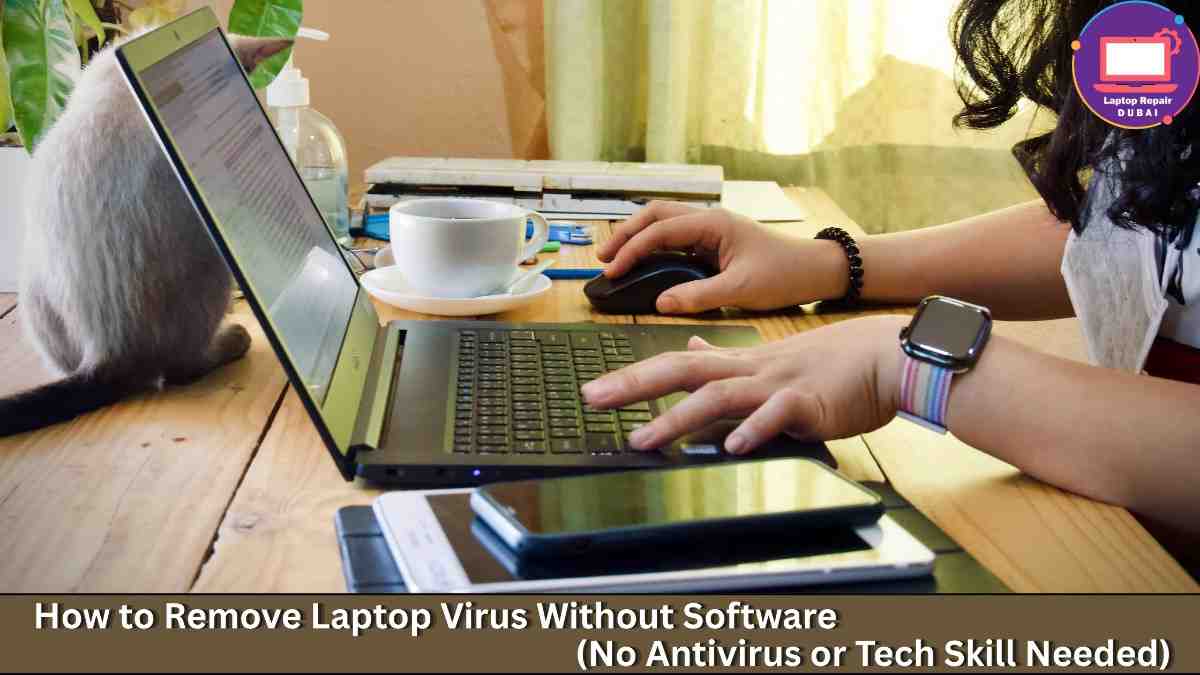

You open your laptop, start typing… And then some keys work, some don’t, and now you’re stuck fixing every sentence.
Disappointing, right?
Laptop keyboard issues are a small glitch. Sometimes it’s just dust, but sometimes it’s a major hardware problem. You absolutely can’t tell which one it is. So, it’s better not to try ineffective DIY tricks. Though you can try some quick tips listed below, ask your expert to fix it.
📌 Here’s some good news for you… You don’t always have to panic or just rush for keyword replacement.
In this laptop guide, we will get to know why your keyboard keys not responding suddenly, what laptop typing problem fixes you can try right now, and when it’s time to call your laptop repair Dubai expert to fix it properly.
Let’s fix it…
What You Can Do Right Now to Fix It (Quick Checks & Easy Fixes)
— Restart Your Laptop (Yes, It Actually Works)
Feels too basic? Still—do it. A simple restart can fix temporary glitches where the keyboard just stops responding due to system lag or background issues.
The steps to take:
- Save your work and restart properly (not force shutdown)
- After a restart, test all keys slowly
Expert recommendation: Many keyboard issues are software-related. Restarting clears temporary bugs instantly.
— Check If It’s Just a Few Keys or the Whole Keyboard
Before trying random fixes, figure out the problem. Is it one key, a few keys, or everything?
Check the following:
- Open Notepad and press each key
- See if specific keys are dead or delayed
Expert guidance:
- Few keys not working = likely dust or damage
- Entire keyboard not working = possible keyboard driver issue laptop or system issue
— Turn Off Sticky Keys & Filter Keys Settings
Sometimes the issue is just settings, like sticky or jammed keys laptop issue. This can mess with your typing.
Steps to take:
- Go to Settings. Accessibility. Keyboard Option
- Turn off Sticky Keys as well as Filter Keys
Professional tip: These settings can miss keystrokes, so fix this option now.
— Update or Reinstall Keyboard Drivers
Outdated or corrupted drivers? This can stop your keyboard from working properly.
The procedure:
- Open Device Manager
- Find “Keyboards” → Right-click → Update driver
- If needed, uninstall and restart to auto-reinstall
Expert advice: Driver issues are very common after updates. This fix often solves “keyboard suddenly stopped working” problems.
— Check for Dirt, Dust, or Sticky Keys
Be real… When was the last time you cleaned your keyboard? Seriously… Dust and even oil from fingers will block keys for sure. Clean laptop keyboard properly right away.
Steps to take:
- Gently clean with a soft brush
- Wipe the surface… with a dry microfiber cloth
Professional tip: Don’t even think of using water or any liquid cleaners directly. Moisture will surely damage your laptop’s internal circuits.
— Try an External Keyboard (Quick Reality Check)
External keyboard working but laptop not? Your laptop keyboard likely has a hardware issue.
What to observe:
- External keyboard works fine → internal keyboard problem
- External also fails → system or software issue
Expert suggestion: This is the fastest way to separate laptop hardware vs software issue
confusion.
— Check for Recent Updates or Software Conflicts
Issue start after a Windows update? Or after installing new software? That’s not a coincidence.
What should be done:
- Roll back recent updates if needed
- Uninstall suspicious apps
Specialist tip: System changes can affect drivers and input devices without warning.
— Look for Signs of Physical or Liquid Damage
Spilled coffee? Water bottle leak? Even small spills can damage keyboard circuits over time.
What to check:
- Keys feeling sticky or unresponsive
- Random typing or ghost inputs
Expert recommendation: Liquid damage doesn’t always show immediately—it slowly affects performance.
— Run Keyboard Troubleshooter (If Available)
Your system possibly has a laptop keyboard troubleshooting option. Try that to fix your keyboard issue at last.
Things to do:
- Go to Settings → Troubleshoot → Keyboard
- Run the tool and follow the instructions
Expert suggestion: It won’t fix everything, but it can quickly detect common issues.
— Last Quick Try: Check BIOS (Advanced but Useful)
If you want to be 100% sure, then just test your keyboard in BIOS (Basic Input/Output System). If it doesn’t work there, then the problem is definitely hardware-related.
How to proceed:
- Restart and enter BIOS… (usually F2/Delete key)
- Try typing or navigating
Expert guidance: If it fails here, no software fix will help. Now, only licensed laptop repair Dubai services can fix your issue.
When to Stop DIY and Get Your Laptop Keyboard Repaired
Tried the basics and still no solutions? Now, just stop experimenting and reach out to certified professionals only.
Multiple keys aren’t working, or you’ve had a spill or physical damage? This isn’t a quick fix anymore. Don’t push it further… It can make things worse or affect other internal parts of your laptop.
At this point, just get a professional laptop repair Dubai service. They can quickly tell if it’s a simple fix or just needs a quick and genuine keyboard replacement option.